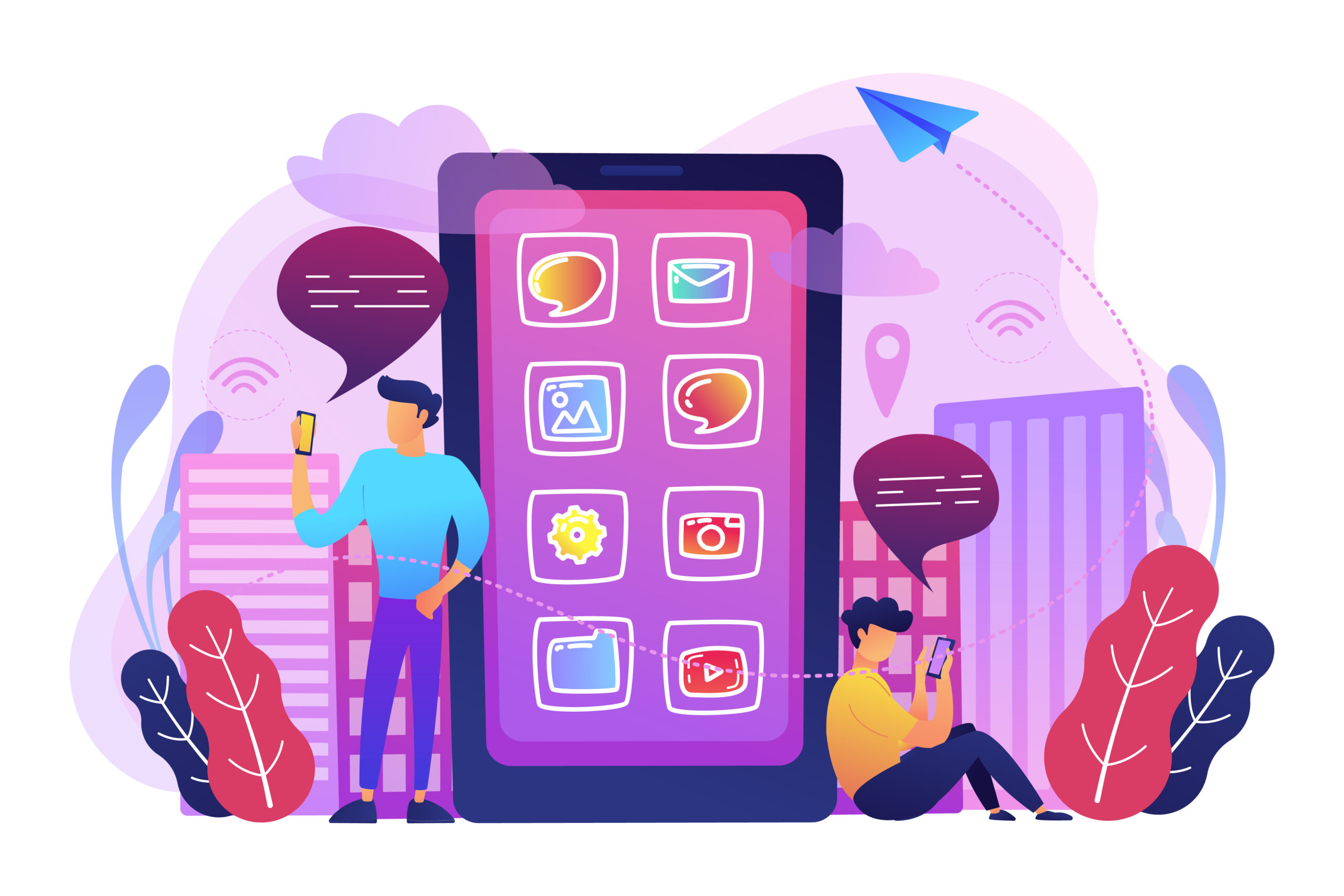
Android gives users the freedom to customise their phones, try different apps, and explore new software. One way to do this is by installing apps through APK files. These files can help users access compatible apps, test new versions, or find releases that may not be available in their regular app store.
However, installing apps manually requires care. Before downloading an APK, it is important to know what it is, where it comes from, and whether it is safe to use.
In this guide, we explain what APK means, how APK files work, why people use them, and what to check before installing one on an Android device.
APK Meaning: What Is an APK File?
APK stands for Android Package Kit. It is a file format used to package Android apps for installation. An APK contains the files needed to install an app, such as its code, images, settings, and other resources.
You can think of an APK as a package that holds everything Android needs to install an application.
Understanding the APK file meaning helps users learn how apps are shared and installed. Usually, people download apps directly from a store such as Google Play. However, they can also download an APK file and install the app manually.
An APK is not automatically a new or better version of an app. It is simply a file used to install software. Its safety depends on where it comes from and what it contains.
What Is Inside an APK File?
An APK contains different files that help an Android app work properly.
Some common parts include:
- DEX files: Contain the app’s code.
- Resources: Include images, layouts, buttons, and other design elements.
- AndroidManifest.xml: Contains important app details, including permissions and supported features.
- Native libraries: Help the app work with certain device processors.
- Assets and settings: Store extra files and information used by the app.
- Digital signature information: Helps check the app’s identity and whether the package has been changed after signing.
The contents depend on the app. Android uses these files to install the application and help it work with the operating system.
How Does Android Install APK Files?
When you download an app through Google Play, the store manages the download and installation process. Depending on the app, it may use one APK file or several package files.
When you install an APK manually, you download the file from another source, open it, and follow the instructions on your phone.
What Is Sideloading?
Sideloading means installing an app from outside your usual app store. On Android, this often means downloading an APK through a browser and opening the file to install it.
The steps may differ depending on your Android version and phone brand. Some devices ask you to allow the browser or file manager to install apps from that source.
For example, if you download an APK through your browser, your phone may ask you to give the browser permission to install it. Allow this only when you trust the file and know where it came from.
Why Do Some Apps Need Manual Installation?
Some developers share APK files directly for testing or to release new versions. Other apps may not be available in certain countries or through a user’s regular app store.
However, an app being unavailable in a store does not mean that a download from another website is safe. Check whether the developer offers an official download and whether the app works with your device.
Why Do Android Users Download APK Files?
APK files give users another way to install apps when they have a good reason to use a source outside their regular app store.
Trying Beta Versions
Developers sometimes share test versions of apps before releasing them to everyone. These versions allow users to try new features and report problems.
Beta apps may have bugs or features that do not work properly. They are best suited to users who are comfortable testing unfinished software.
Accessing Apps From Different Regions
Some apps are available only in certain countries because of local rules, licensing agreements, or developer choices.
In some cases, an authorised APK source may allow users to access an app that is not available in their usual store. Before downloading it, check that the source is genuine and that the app can legally be used in your location.
Installing Older Versions
Some developers provide older versions of their apps for testing or to help users with specific devices.
These versions may be useful in certain situations, but they can also lack important security updates. Install an older version only when needed and understand the risks.
Testing Apps From Independent Developers
Independent developers sometimes share early versions of their apps with testers. Users can try these apps, report errors, and help developers improve them.
Whenever possible, download these files from the developer’s official website or a trusted testing platform.
APK vs. Installed App: What Is the Difference?
An APK file and an app are not the same thing.
An APK is a file used to install an app, while an app is the software you use after installation. Downloading an APK does not mean the app is already installed on your phone.
| Feature | APK File | Installed App |
|---|---|---|
| Purpose | Contains files needed to install an app | Lets you use the app |
| Format | A downloadable file ending in .apk |
An app available on your device |
| Installation | Needs to be installed first | Already installed |
| Updates | May require downloading a new package | Can receive updates through its supported source |
| Safety | Depends on the source and file contents | Depends on the app, its permissions, and updates |
An APK from a developer may contain the same app that is available through an official store. However, you should check that the file is genuine and has not been changed.
APK Installation vs. Google Play
Google Play and manual APK installation are two ways to get apps on an Android device. Each has its own benefits and risks.
Installing Apps Through Google Play
Google Play allows users to find apps, check developer details, and receive updates through the store.
Google also uses security tools to help detect harmful apps. These tools can reduce risks, but they cannot guarantee that every app is completely safe.
For most users, Google Play or another trusted app store is the easiest way to download and update apps.
Installing Apps Through APK Files
Manual installation gives users more control over which package they install. It can be useful for testing apps, installing developer-provided releases, or accessing apps that are unavailable through a regular store.
However, users may need to check the file themselves, confirm that it works with their device, and manage updates. An APK from an unknown website may also contain harmful software.
For this reason, manual installation is best used when there is a clear need for it.
Security Risks to Check Before Installing an APK
APK files are a normal part of Android, but downloading them from unknown sources can put your device and personal information at risk.
Harmful or Modified Apps
Some people disguise harmful software as popular games, useful tools, or paid apps. These files may steal information, show unwanted advertisements, or perform actions that the original app does not need.
An app’s name or logo does not prove that it is genuine. Check the developer and download the file from a source you trust.
Apps That Ask for Too Many Permissions
Some apps request access to your contacts, location, microphone, or stored files. These permissions may be needed for certain features, but others may not make sense.
Check the permissions before installing an app. If it asks for access that has nothing to do with its main purpose, think carefully before continuing.
Missing Updates
Apps installed manually may not receive updates automatically through Google Play. You may need to download new versions from the developer.
Without updates, security problems may remain unfixed. If the developer no longer supports the app, consider using another option that receives regular updates.
Problems With Compatibility and Data
An APK may not work with your Android version or phone hardware. This can cause installation errors, crashes, or other problems.
Installing a different version over an existing app can also fail if the package signatures do not match. Back up important data before making major changes to your device.
How to Download and Install APK Files Safely
If you need to install an APK, follow these steps to reduce the risks.
Step 1: Find the Official Download Source
Start with the developer’s official website, verified repository, or trusted testing programme. Avoid websites with misleading download buttons, unexpected redirects, or requests to install extra software.
If the app is available through an official app store, consider downloading it from there.
Step 2: Check That the File Is Genuine
Check the developer’s name, app version, and package details. If the developer provides a checksum or instructions for checking the digital signature, use them to confirm that the file matches the expected release.
A digital signature can help show whether a package has been changed after signing. However, it does not guarantee that the app is free from harmful features.
Step 3: Check Installation Permissions
Your phone may ask you to allow the browser or file manager to install the APK. Give permission only when you trust the source and need to install that file.
Turn off the permission afterwards if you no longer need it. Do not ignore security warnings simply to finish the installation.
Step 4: Review App Permissions
Check what information and features the app wants to access. Make sure these permissions match what the app is supposed to do.
Avoid giving unnecessary access, especially to apps from developers you do not know.
Step 5: Keep Your Device Updated
Install Android security updates and keep your apps up to date. If an app no longer receives updates or its developer cannot be verified, look for a safer alternative.
These steps can lower some risks, but they cannot guarantee that every APK is safe.
APK Files for Games: What Should Players Know?
Some Android game developers share APK files for testing, regional releases, or other authorised versions.
However, unofficial game APKs may contain harmful software, changed game files, or features that break the game’s rules.
Modified Games and Extra Features
Modified games may promise free items, unlimited coins, unlocked levels, or other extra features. Be careful with these claims, especially if the download asks for unusual permissions or access to your gaming account.
Using modified game files may also lead to account restrictions or bans, depending on the game’s rules. Downloading an APK does not give you permission to bypass payments, licences, or anti-cheat systems.
For a safer experience, use official games or versions shared by the developer.
Protecting Your Gaming Account
Do not enter your account details into unfamiliar apps or third-party login pages. Use a strong, unique password and turn on extra security features when available.
If a game APK asks you to turn off important security settings or share sensitive information that is not needed to play, stop and check whether the request is genuine.
Common Questions About APK Files
What Does APK Stand For?
APK stands for Android Package Kit. It is a file format used to package Android apps for installation. It can contain the app’s code, images, settings, and other required files.
Are APK Downloads Safe?
Some APK files are safe, while others may contain harmful or modified software. Their safety depends on where they come from, whether they are genuine, and what they contain. Downloading from a verified developer source is safer than using an unknown website.
Can I Install an APK Without Google Play?
Yes. Compatible Android devices can install APK files manually. This process is called sideloading. Depending on your phone, you may need to allow the browser or file manager to install the file.
Do APK Files Update Automatically?
Not always. Apps installed manually may need to be updated by downloading a new package from the developer. Automatic updates depend on the app’s distribution method and available update options.
Is an APK the Same as an App?
No. An APK is the file used to install an app. The app is the software you use after it has been installed on your device.
Can APK Files Harm an Android Phone?
A harmful APK may steal personal information, misuse permissions, or cause problems with your device. Installing an APK does not automatically damage your phone, but downloading unverified software can create security risks.
Why Does Android Block an APK Installation?
Android may block an APK because the source does not have permission to install apps, the file is damaged, the package is incompatible, or a security tool detects a possible threat. Read the warning carefully before changing any security settings.
Final Thoughts: Use APK Files With Care
APK files give Android users and developers another way to share and install apps. They can be useful for testing software, trying authorised releases, or installing apps that are not available through a regular store.
However, it is important to be careful. An APK’s name, logo, or advertised features do not prove that it is safe. Always check the source, review app permissions, install updates, and follow the app’s rules.
For everyday use, official app stores are usually the easiest way to find and update apps. If you need to install an APK manually, check the file carefully and protect your device and personal information.